Showing posts with label HACKING TOOL AND TRICKS. Show all posts

Opengl C++ Source Code of Faisal Masjid


In  this tutorial i will explain you that how to make a full project step by step, this tutorial is first part of this project, it,s about Faisal Masjid or Faisla Mosque, i have explain in easy to easy way that how to Draw a Polygon, How to Draw a Vertex, and How to Set Background Color in Project of Opengl

Turbo C & C++ Windows 7-8 and 8.1 ( x64 Bit)


Just Download and Extract in Drive C:


How to Remove Pimples or Spot From Your Face with Cs5 in Urdu


How to creat Rainy Effect in Photoshop Cs5 in Urdu

Windows 8.1 Activator


How To Activat Windows 8.1 
Now You can Activat your Windows 8.1 in just one click Follow these steps

Magic PS v1.5 SE FINAL- Hack Password Yahoo ID or Messenger


Magic PS v1.5 SE FINAL is a free tool to hack any Yahoo mail ID or Yahoo Messenger password. You can use it to get password for any yahoo or messenger ID. Magic PS v1.5 is a Powerfull Password Sender for Yahoo!. This tutorial and app only for educational purpose.

Magic PS v1.5 or Yahoo Cracker MPS 1.5 Final version sends victim ID's pass to your id. It work without any smtp and script

How to resume IDM Broken Links

We all know Internet Download Manager (IDM) is the most popular downloader. But how you feel when you have already downloaded a large part of a big file (i.e; 60% to 99%) and you get a link broken error message. Although it was a resume-able download link? Definitely you feel like breaking your system into pieces. Same was the case with me but I have discovered a trick to resume broken IDM download links and now I am going to share this trick with you. Follow the simple steps below:
Condition: File should be available in the site form where you started your download/file hosting server/mirrors.
  1. Double click the download name in main IDM window that shows ERROR to resume.
  2. Click the http link of file (highlighted in blue colour)
  3. Download link will open in the browser and a window appears just after that.
  4. Click ‘OK’ to resume.
  5. Most probably the download will resume.
If it still doesn’t resume then continue with following steps:
  1. Open the website/mirror site of the same file that you were downloading.
  2. Start a new download of the same file again which was showing ERROR from website/mirror site).
  3. After download starts, “pause” it.
  4. Then double click new download’s name.
  5. Copy the address from “Address box” of new download (shown with blue colour).
  6. Paste the copied address to old download’s similar “Address box”
  7. Click “OK” button.
  8. Now from main IDM download window select the old download that was showing ERROR and click on resume.         
  9.  Internet Download Manager v 6.05
  10. Now that old file which was not resuming is now again downloading with full speed. :)

16,17/17 Of The Coolest Hidden Google Tricks

16. Zerg rush:
Google “zerg rush” and prepare to defend your browser against hordes of the letter ‘o’ in Google’s logo, which will start to destroy your search results. They’re apparently undefeatable, but you can try to fight them off by clicking on them and share your high score on Google +. For those who aren’t familiar with StarCraft, a ‘zerg rush’ is a tactic where swarms of aliens known as ‘zergs’ descend in multitudes in order to overwhelm their enemies.
17. You’ll never find Chuck Norris
Because Chuck Norris jokes never get old, there is a warning hidden in Google search results to ward off those who dare to attempt to find him. Just search ‘find Chuck Norris’ and hit ‘I’m feeling lucky’ and you’ll see what I mean.

14,15/17 Of The Coolest Hidden Google Tricks

14. Laundry:
There are a lot of things Gmail can do for you — filter spam, flood you with ads, apply a plethora of pretty coloured labels to your messages — but, as yet, it can’t do your laundry.  However, it is an option on the ‘suggest a feature’ page for Gmail.
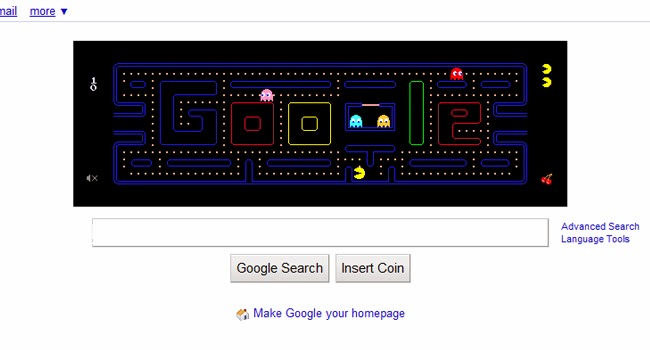
15. Pacman:
It started out as a Google doodle to commemorate the 30th anniversary of Pacman in 2010, but the Google Pacman game was so popular, it was given a permanent home.

12,13/17 Of The Coolest Hidden Google Tricks

12. Konami ninja:
f you type in the Konami code (a cheat code used in Konami games) in Google Reader, the side panel will turn blue and a cute ninja will appear on the left of your screen. Use your arrow keys and keyboard to enter the code — it’s up, up, down, down, left, right, left, right, followed by the letters B and A. Like iGoogle’s Nessy, this one is going away after Reader is retired in July 2013.
13. Street View team:
Ever wanted to see the people who work at Google doing cool things like Google Street View? Well, if you hop along to the back of the Google offices in Mountain View, you can see them all.

10,11/17 Of The Coolest Hidden Google Tricks

10. Antarctic Penguins:
If you ever want to creep the Antarctic on Google Maps, you may be surprised to find the little orange peg man you drag and drop to change to Google Street View has transformed into a fat little penguin. Awwww.
11. Doodles:
What do you get if you don’t actually search for anything, and just hit ‘I’m feeling lucky’? A catalogue of all the Google doodles — all the way back to 1998. There were just three in that year — there have already been 69 in 2012.

8,9/17 Of The Coolest Hidden Google Tricks

8. Hello, Nessy:
Picture this: You’re working under a tight deadline, your clock is slowly counting the minutes past 3AM and your coffee and Red Bull combo is failing. The sleep deprivation is starting to affect you — you are starting to see things. You click to your home page, and there, rising gracefully from the dark waves in your iGoogle theme, is the Lochness Monster.
No, you’re not hallucinating — you really did see Nessy. If you are ever awake and online at 3:14 AM (those are the first three digits in Pi, by the way), and have the iGoogle beach theme installed, Nessy will come to visit for a minute. If you’re not an insomniac, you can always just change the timezone on your computer and in your iGoogle settings and just wait until 14 minutes past the hour (I was in Bangkok last night, as far as Google knows). Unfortunately, it looks like the monster will be no more after iGoogle is retired in November 2013.
9. Nagging Rams:
Similar to the ‘recursion’ response, if you search for ‘anagram’ (rearranging the letters in a word to make a new word or phrase, in case you didn’t know), Google rearranges the letters to suggest you were really searching for ‘nag a ram’.

6,7/17 Of The Coolest Hidden Google Tricks

6. Klingon:
So “GoogleDaq ylnej” means “Google search”. Hmmm. Who knew? Well, you, if you speak Klingon. Yes, there is a Klingon version of Google. There is also a pirate and Elmer Fudd version, if that’s more your thing.
7. Kerning:
Designers will love this one — kerning is the spacing between letters in a word. When you do a search for kerning, Google changes the spaces between letters in the word ‘kerning’ in all the results. Heehee. You see what they did there?

4,5/17 Of The Coolest Hidden Google Tricks

4. Gravity:
f, by any chance, you feeling like searching “Google gravity” and hitting “I’m feeling lucky”, don’t be surprised if Google comes crashing down around you the second you move the mouse. (Hint: you can disable Google’s instant results in your account preferences page to make sure you get the ‘I’m feeling lucky’ option)
5. Recursion:
Google pokes fun at its own “did you mean” suggestions if you search recursion (repetition or returning) by questioning your spelling even though you didn’t make a mistake

2,3/17 Of The Coolest Hidden Google Tricks

2. Barrel roll:
Endlessly entertaining, this one trended worldwide on Twitter in November. Simply search “do a barrel roll” — if you have Google’s instant results functions enabled, your results page will be spinning before you’ve completed the instruction

3. 42:
What is 42, you ask? Geez, it’s only the answer to life, the universe and everything. Ok, so if you’ve never read or watched The Hitchhiker’s Guide to the Galaxy, you won’t get this one. But Google’s built-in calculator will

1/17 Of The Coolest Hidden Google Tricks


Google is awesome. Yes, there have been questions raised about its new privacy policy and creepy Safari tracking and frankly, it just knows way too much about everyone who has ever created a Google account. But let’s put that aside for a moment and focus on all its cool quirks, shall we?
They’re built into practically every Google product — if you look hard enough, you’ll find that entering the right search term or typing a code can make Google collapse, spin or create fictional characters. Here are 15 easter eggs (hidden, entertaining things developers build into a website or program) for you to discover the next time you’re Googling.
1. Walking to Mordor:

If you’ve ever watched The Lord of the Rings: The Fellowship of the Ring (or just seen various versions of the meme) you may never stop laughing at this Google Maps quirk (or maybe it’s just me). If you try to get walking directions from “The Shire” or “Rivendell” to “Mordor” (just type in the words and ignore all the auto-complete suggestions that pop up), Google will give you the route… and a warning. In other news, according to my Google Maps, Mordor is located just outside Cape Town, South Africa. Nice.

How to remove virus from mobile

Viruses on mobile are a malicious software, which targets mobile phonesand causing them to collapse and lose confidential information so therefore we have to know How to remove virus from mobile. During recent years, the use of mobile phones has been increased. Having a mobile phone is a global phenomenon. It is also a social tool. People are using mobiles in maintaining their social networks. However there are also negative impacts of mobiles such as cyber bullying.
Mobile phones have become staples of the society. Mobile applications and texting services have made our lives easier. But, there are some bad effects of mobile phones also. Mobile phones also carry harmful bacteria, which will result in contagious infections.
Mobile phones are also composed of circuit boards and semiconductors, which emits harmful toxins. These types of pollutants can cause contamination of water bodies and other food related source.
Virus threat can be a serious problem for your mobile phones. If your mobile is affected by viruses, malware, and Trojans then this can further lead to identity threat. Viruses can enter in the mobile through SMS, email attachment, audio and video sharing through Bluetooth or internet. A mobile phone virus is similar to viruses of computers. It is being spread by MMS, Bluetooth transfer, and internet downloads. Even inside the small photo on your mobile there can be a small virus, which can infect the mobile. If you use your mobile or smart phone to send and receive emails, then chances are that you might have downloaded a virus along with the email attachment.

Symptoms of Virus infection on mobiles: –

  • The mobile may restart frequently.
  • You may not be able any applications on your mobile.
  • The speed of the mobile phone slows down.
  • Battery depletion rate increases.
  • Installed antivirus is likely to disabled.
  • An unusual error message may occur.
  • You are not able to use your phone.
  • Your sensitive information is leaking.
It’s true that  technology has been growing quickly but, it is also followed by some negative effects. Today, having a cell is not a tough task. With the help of mobiles we are always connected to our friends and family. There are more positive sites on mobile phones as comparing to the negative sides.
Once viruses are on the cell phone they can steal the personal information known as identity theft, make expensive calls, and run down the battery really quick.
We at Click4Support provides extensive technical support to clients. We provide antivirus software support to clean viruses from mobile phones, windows 8, windows 7, Mac, Apple, Microsoft, and others. Now, there is no need to download antivirus software, just dial antivirus support phone number Support: 1-888-884-0006.

What Click4Support provides: –

  • Antivirus software support
  • Best antivirus support
  • Antivirus software
  • E-mail support
  • Technical support
  • Internet security
  • Services for McAfee, Norton security essential

YOU CAN SEE HEART/PICTUR AS SCREEN SAVER

SET PICTURE AS SCREEN SAVER
Normally people use windows default screen savers. I will tell you a method to put picture of car, bus, airplane, flower  etc as screen saver.
Right click on desktop and click on properties.
Go to screen saver and open the list of screen savers.
Click on 3D Text.
Now click on setting.
Delete the default sentence of window and type capital "Y"
Now click on "Choose font"
From the font list, select "Webdings" and click ok.
Increase the size of picture, select rotation type and adjust rotation speed.
Now click ok and press "preview"
You will see heart as screen saver.
You can use different alphabet for different pictures.

Make Bootable USB.

If you want to install windows xp on your pc and you feel that your CD drive is not working properly or you have no any optical drive to install windows, than you  can prepare a bootable USB device for installation of windows XP, vista or  7. 

It is very easy and simple to make a boot able usb. Normally all notebooks have the option in the BIOS to boot from USB. Many other mother boards like intel 865, 915, 965 etc has also option to boot from USB device. So it is very simple and easy way to install XP on your computer. 


To make a bootable usb, first of all you will install a software "wintoflash". you can easily download this software from the web. The size of this software is approximately 17MB. 

Install it on your computer and then start this program. It will show two different paths. In first browse option you will select windows XP disk and in second browse option, select your Pen drive/USB. Click next to proceed. It will copy all files of windows xp from CD to USB. Now click finish. It is complete. 


Now you can use this USB for installation of windows. Enjoy.

HOW TO DISABLE ERROR REPORTING IN WIN XP

Remove Error in Windows Xp.
Some time an error occurs while you are using XP. A little dialogue box appears asking if you want to send report to Microsoft for this accident or not? Mostly when we press the button “Don’t send” The software we are using, turns off and we do not get any chance to save our working data. You can solve this problem simply and after this process you will not see this error box again. Just follow these steps.


Right click on “My computer” and click on ‘Properties”
On system properties dialogue box click on ‘advance tab”
Click on the error reporting button.
Click on “Disable error reporting”
It’s better for you to Place checkmark on “But notify me when critical errors occurs”
Now click Ok.

 
Support : All Software | Muhammad Awais | Notes
Copyright © 2011. Allsoftwarez4u - All Rights Reserved
Template Modify by Creating Website
Proudly powered by Blogger
Google